
Copy Rules
Overview
Copy Rules is a batch tool for synchronizing iLogic rules across many components in an assembly. Use it when you have a known-good source component and you want other components to match its rule logic, or when you want to run consistent rule logic across a filtered set of components.
How It Works
Copy Rules loads rules from a selected source component document and processes the chosen rule names against each target component. You select the operation (Sync, Update, and/or Run) and one or more rules from the source.
Sync operations create the rule if it does not exist in the target and synchronize its text. Update operations only update rules that already exist in the target and do not create missing rules. Run operations execute the rule logic, with an option to include suppressed rules.
Targets can be selected interactively, from the current selection set, or by processing all components based on type, nesting, and optional name filtering. Processed components are added to the selection set to support review.
Context Menus
This command does not provide the rule-selection context menu behavior on text inputs. Rule selection is done from the list in the dialog.
Usage Instructions
- Open an assembly.
- Start Copy Rules.
- Select the source component file using the file browse button, or pick a source component in the graphics window.
- Select one or more rules in the list.
- Select the Command (Sync/Update/Run).
- If the command includes running rules, choose whether to run suppressed rules.
- Choose how to select target components and configure filtering. Use Preview to highlight targets.
- Click Apply to run and review the results report.
Troubleshooting
- Apply is disabled: Select a valid source component file and select at least one rule in the list.
- Rules do not run: If the rule is suppressed and Run suppressed is off, the command skips execution.
- Rules are not created in targets: Use a Sync command. Update commands do not create missing rules.
- Nothing happens in Selection Set mode: Ensure the selection set contains components.
Examples
Example: Sync a rule into many components
Select one or more rules and use Sync Only to ensure the rules exist and match the source text.
Example: Update existing rule text to match the source
Use Update Only to refresh rule text in components that already contain the rule, without creating new rules.
Example: Sync and then run logic across a filtered set
Use Sync and Run with component filters when you want both consistent rule definitions and immediate execution.
Dialog Box Input
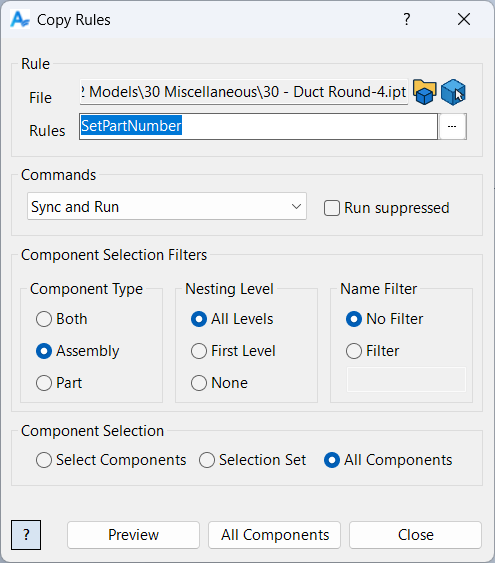
Source Component
Pick a component in the assembly or use the file dialog box to choose the source file.
Rule Selection
Select rules to process from the available list. Use Shift or Ctrl to select multiple items.
Command
Sync and Run: Create/sync rules from the source, then run them.
Sync Only: Create/sync rules from the source without running.
Update and Run: Update existing target rules to match the source, then run them.
Update Only: Update existing target rules to match the source without running.
Run Only: Run the selected rule text without changing which rules exist in the target.
Run Suppressed
When enabled, suppressed rules can run when the selected command includes running rules.
Component Selection
Select components to process. Filtering options are available as described in Filtered Select.
Samples
See Sample Copy Rules for an example, and Samples Summary for where sample files are installed.
